

Auth0 and user role information
Revised article
This is a revised version of an article originally published on larsolino.dev on February 12, 2025.
Auth0 has built-in role management: you can create roles and assign them to users in the Dashboard. That does not automatically put a list of those roles into an application's ID token.
This guide adds assigned Auth0 roles to a custom claim with a post-login Action. It assumes that your OpenID Connect application already signs users in successfully.
Roles and groups
event.authorization.rolescontains Auth0 role names. It is not a list of groups from an external identity provider. If your application needs external group membership, configure that mapping separately.
Assign a role to the test user
Create a role under User Management → Roles, then assign it to a test user from the user's Roles tab. Use an administrative role assignment; user-editable profile metadata is not an appropriate source for authorization decisions.
Create a post-login Action
Open Actions → Library and create a custom Action for the Login / Post Login trigger. Dashboard labels may differ from the original screenshots.
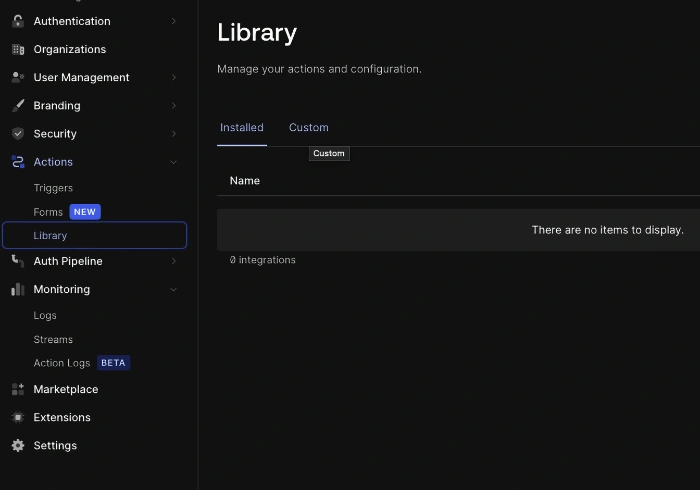

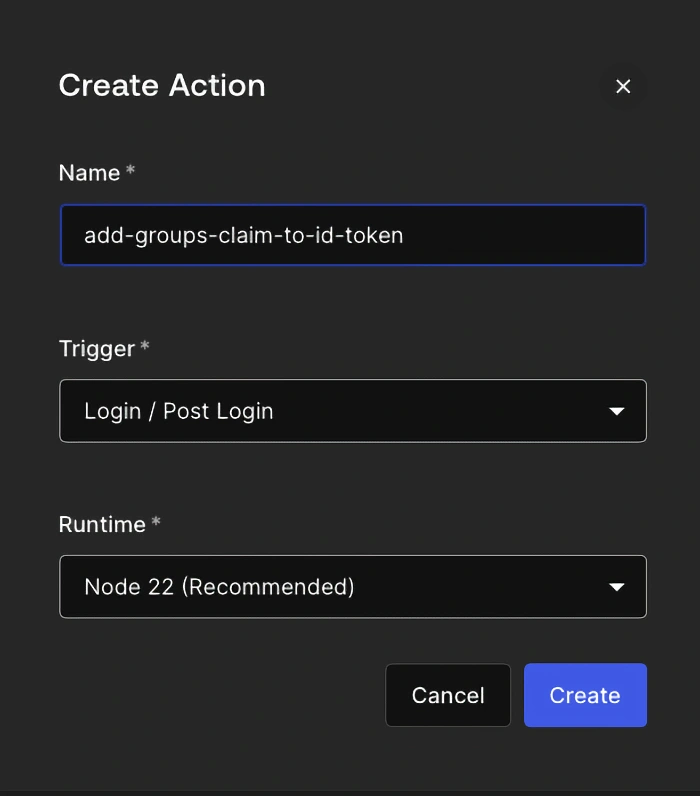
Use a namespaced claim to avoid collisions:
exports.onExecutePostLogin = async (event, api) => {
  if (event.authorization) {
    api.idToken.setCustomClaim(
      'https://myapp.example.com/roles',
      event.authorization.roles
    );
  }
};
Replace https://myapp.example.com with a namespace you control. The claim name is an identifier; it does not have to serve a web page. The application must read the complete claim name, including the namespace. Auth0 recommends namespaced custom claims and restricts names such as groups and roles; prefixing the claim avoids using those bare names. See Auth0's custom claim rules.
Deploy and attach the Action
Deploy the Action, then open the post-login flow under Actions → Triggers. Add the deployed Action between Start and Complete, and apply the flow changes.
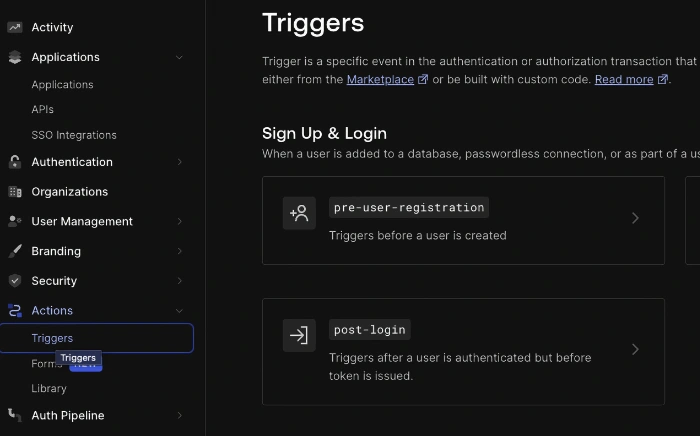
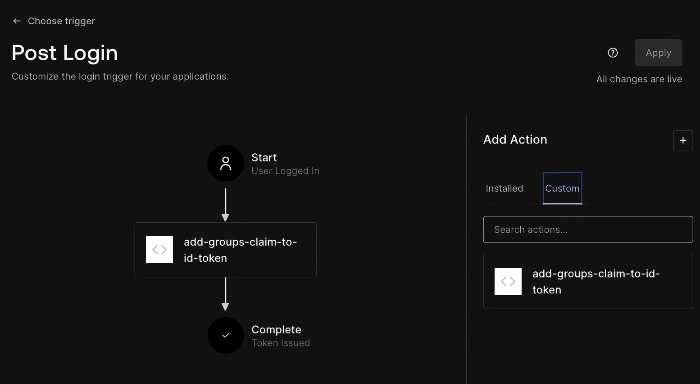
Sign in again to obtain a new token. Editing an Action does not change a token that has already been issued.
Inspect the ID token
For a user with the example roles, the decoded ID-token payload will contain a claim like this:
{
  "https://myapp.example.com/roles": [
    "admins",
    "superusers",
    "travel-demo-editors"
  ]
}
This is an excerpt, not a complete token. A role claim in an ID token describes the user to the client application. An API should receive and validate an access token intended for that API, rather than accepting an ID token as its bearer credential.
If an API needs the roles too, add the corresponding api.accessToken.setCustomClaim(...) call and request an access token with that API's audience. Validate the issuer, audience, signature and expiration before trusting its claims. The post-login Action API documents the separate ID-token and access-token methods.
If the claim is missing
Check that the user has an assigned role, the Action is deployed, the flow changes were applied, and you are inspecting a newly issued ID token from the intended application. If the claim name changed from the original ssogroups, update the application's claim mapping to match.