

Keycloak – Passwordless Login with WebAuthn/FIDO2
Revised article
This is a revised version of an article originally published on larsolino.dev on July 12, 2025.
WebAuthn lets a browser authenticate with a security key or platform authenticator, such as Touch ID or Windows Hello. A passwordless credential uses a local verification step, such as a PIN or biometric check, without sending that biometric data to Keycloak.
This guide adapts the original Keycloak 26.2.5 example. The screenshots show that version; newer versions also offer passkey integration in the standard login forms. The custom flow below is useful for understanding an explicit username-first passwordless flow.
Use a test realm
Enroll a passwordless credential before requiring it. Keep an administrator session and an enrollment or recovery path available so that changing the browser flow does not lock users out.
Register a passwordless credential first
In Authentication → Required actions, enable Webauthn Register Passwordless. This is distinct from Webauthn Register, which registers a credential for the second-factor flow.
Under the authentication policies, open WebAuthn Passwordless Policy and review the relying-party settings. Require user verification for this example. Use HTTPS outside a local development environment, and use a hostname consistent with the relying-party ID: credentials registered for one relying party will not work on an unrelated hostname.
For an existing test user, assign the Webauthn Register Passwordless required action. While the normal browser flow is still active, have that user sign in and complete enrollment. Depending on the version, the action can be assigned from the user's required actions or credentials settings.
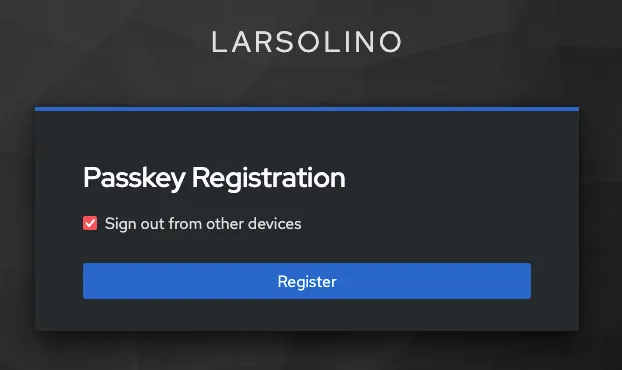
Making the action a default for new users does not enroll existing users automatically. Public self-registration is a separate realm setting and is not required to test with an existing account. Do not rely on a passwordless-only flow to bootstrap a user who has no passwordless credential yet.
The Keycloak administration guide documents the separate enrollment action, policy and authenticator, as well as the newer built-in passkey options.
Duplicate the browser flow
In Authentication → Flows, duplicate the built-in browser flow and give the copy a descriptive name, such as Passwordless Flow.
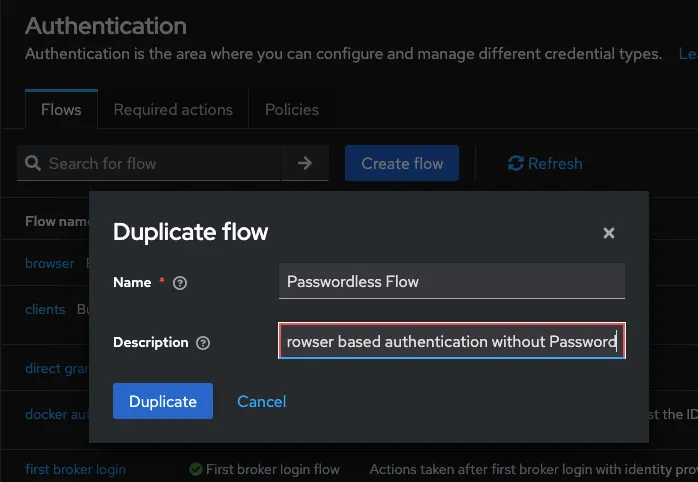
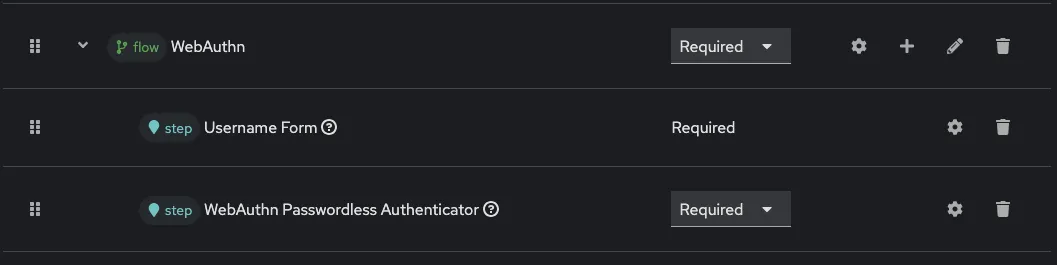
In the copy, replace the interactive username/password forms branch with a Generic subflow. Retain the other top-level executions deliberately: a Cookie execution can reuse an existing session, for example.
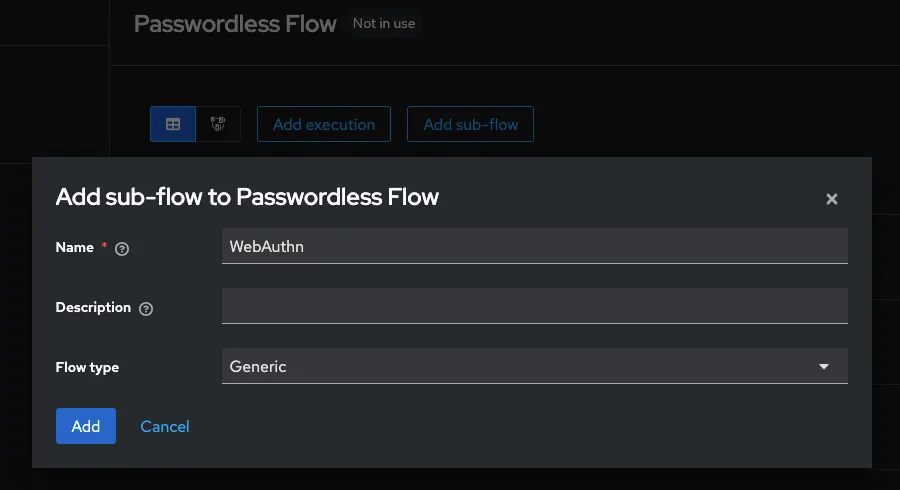
Set the new subflow to Required, then add these executions inside it, in this order:
- Username Form, set to Required.
- WebAuthn Passwordless Authenticator, set to Required.
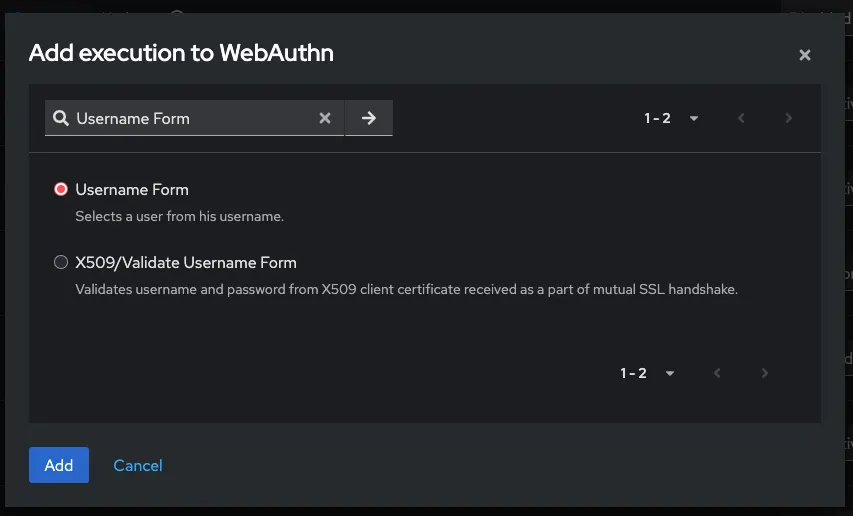
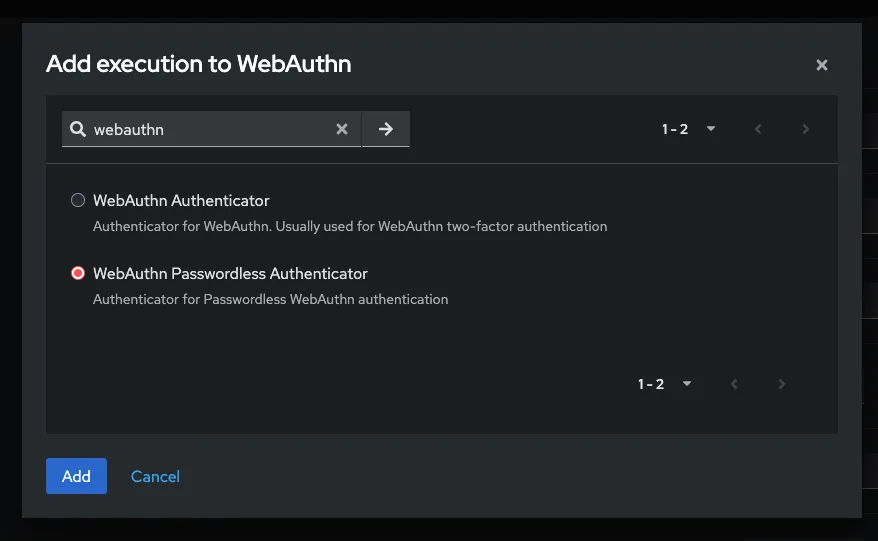
The username identifies the account; its registered passwordless credential completes authentication. This is passwordless, but it is not a username-less flow.
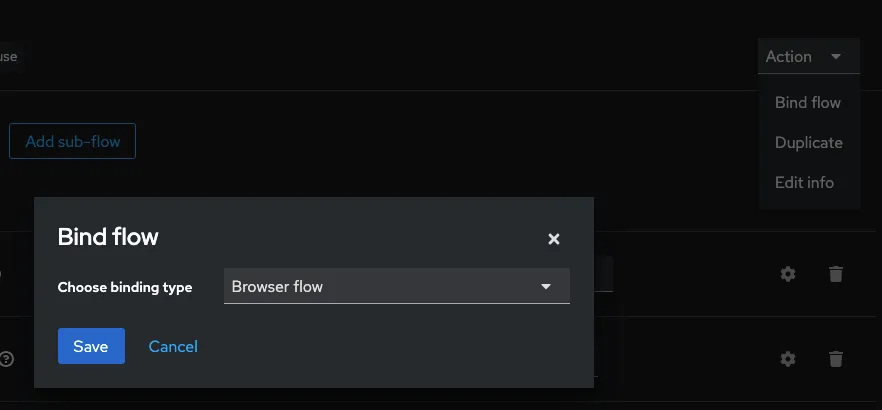
Bind the copied flow as the realm's Browser flow only after enrollment is working. A client-specific browser-flow override can limit testing to one client before changing the realm binding.
Create a test client
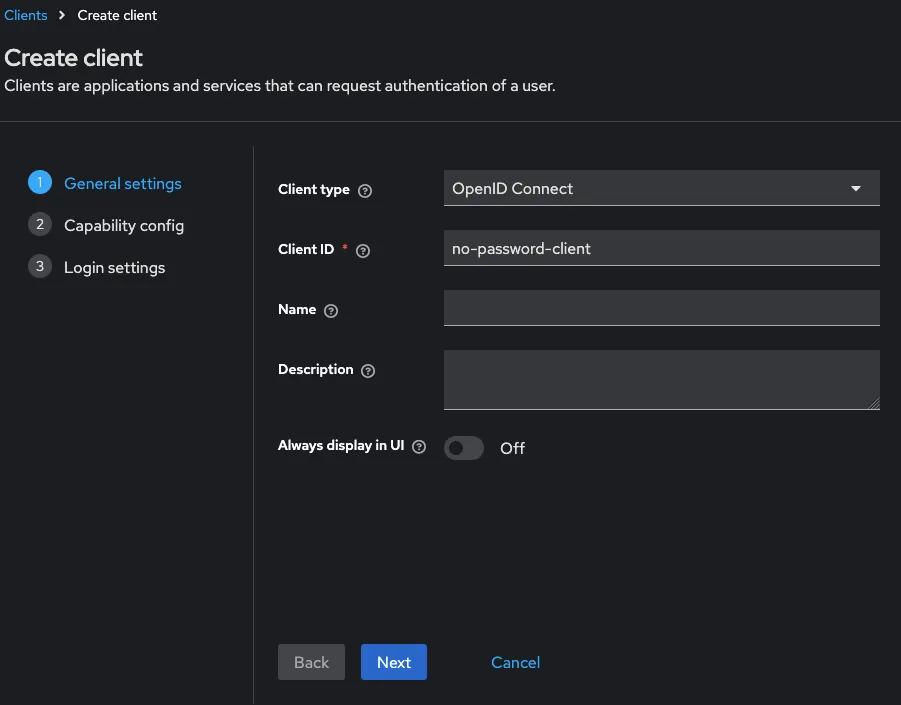
The original example uses the Keycloak JavaScript demo. Use a separate OpenID Connect client for it:
| Setting | Value |
|---|---|
| Client ID | no-password-client |
| Client authentication | Off (public client) |
| Standard flow | On |
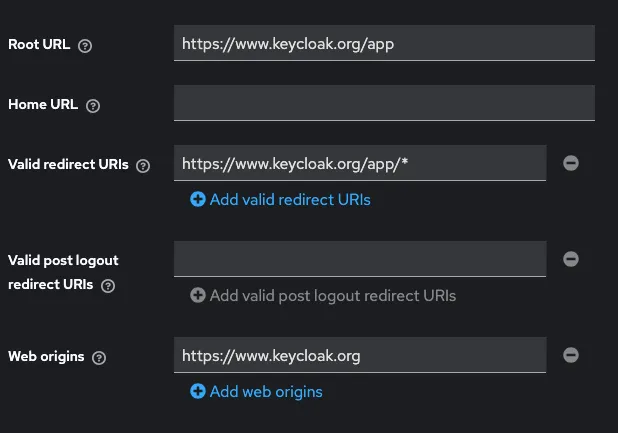
| Valid redirect URIs | https://www.keycloak.org/app/* |
| Web origins | https://www.keycloak.org |
These redirect settings are specific to the demo. Register only your application's actual callback URLs for a real integration, and enable PKCE with S256 where supported by the client.
Test the login
Open the demo and configure your Keycloak base URL, realm and client ID. A local base URL could be http://localhost:8180; do not append /admin.
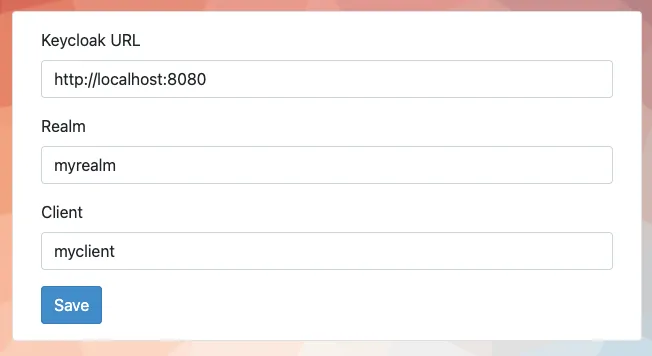
Use a fresh browser session so an existing SSO cookie does not skip the interactive flow. Sign in with the enrolled user's name, select the authenticator and complete its PIN or biometric prompt.
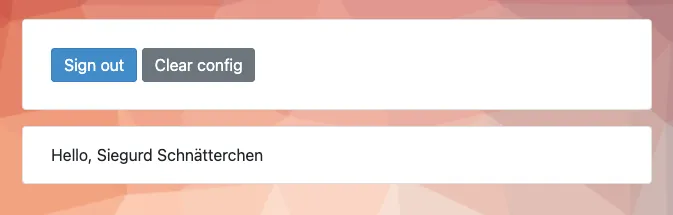
Also test an account without a credential and the recovery procedure before expanding the rollout. A working enrolled-user login alone does not prove that enrollment, lost-device recovery or a production rollout is ready.